
Ghostty is a popular terminal app, the window where you type commands. It comes in two versions, one for the Mac and one for Linux. On most Linux systems you can only use the Linux version. On Cutefish you can also run the Mac version, thanks to Reef, the part of Cutefish that runs Mac apps.
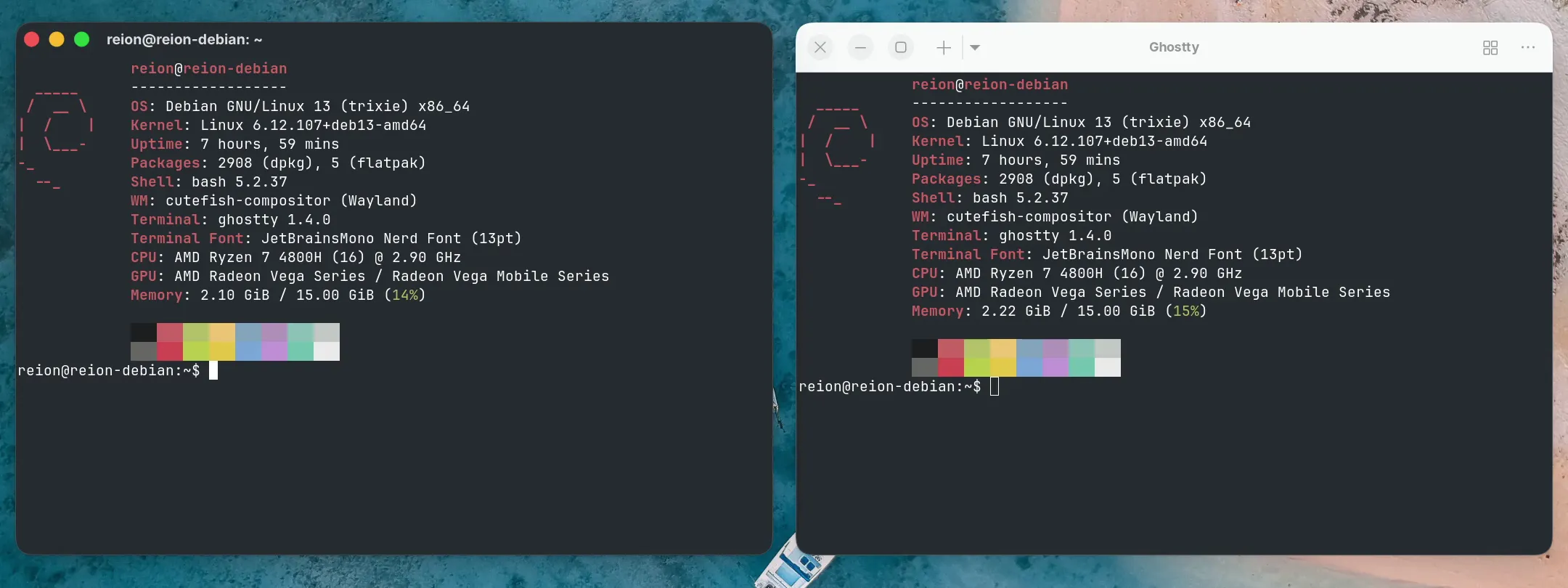
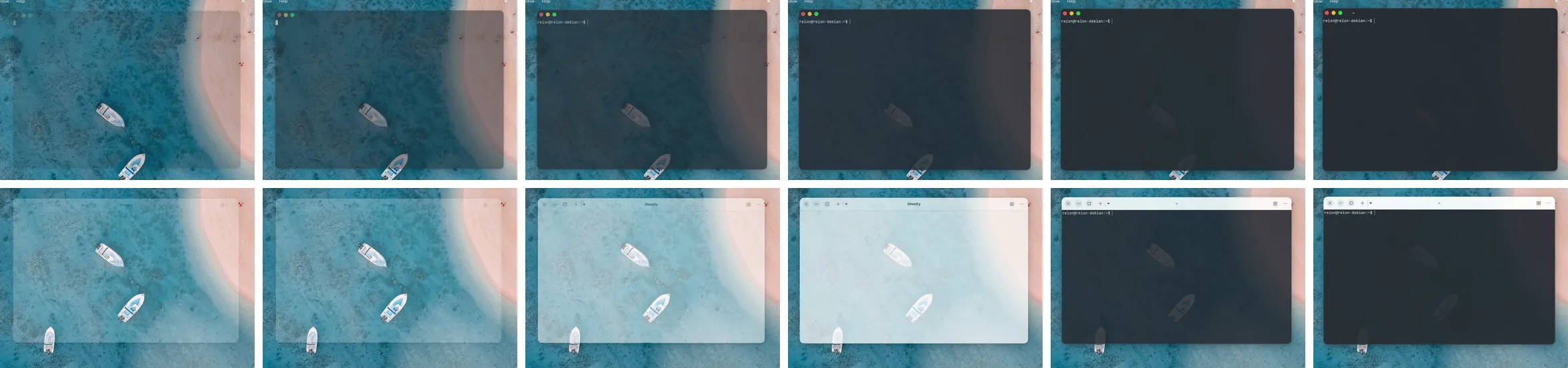
We tried both, with the same settings and Ghostty’s standard look, and the Mac version gives the better experience. Here they are next to each other, the Mac version on the left.
It looks at home
The Mac version’s title bar takes on the colour of the terminal, with the same three window buttons as every other Cutefish window.
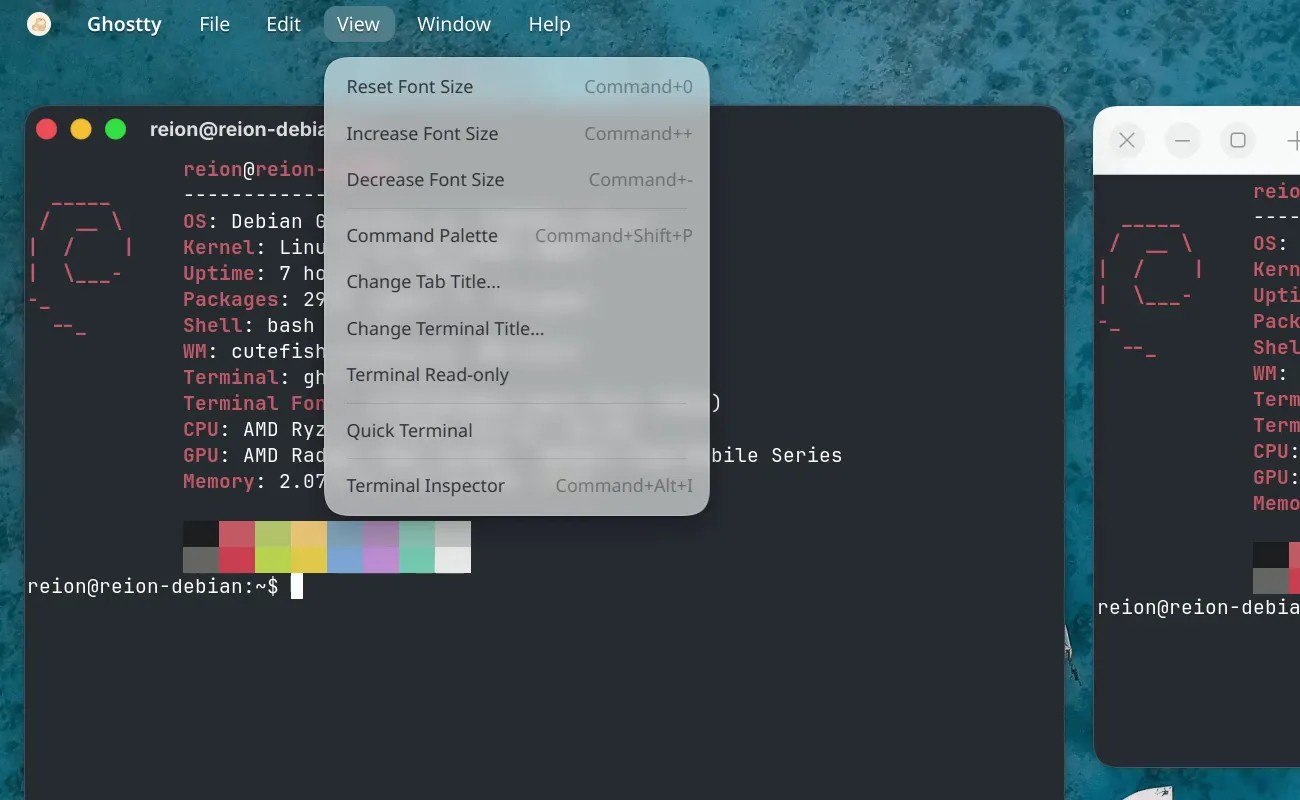
The Mac version also puts all its menus in the Cutefish menu bar at the top of the screen, with the keyboard shortcut for each command written next to it. Everything Ghostty can do is a click away, and you can learn the shortcuts as you go.
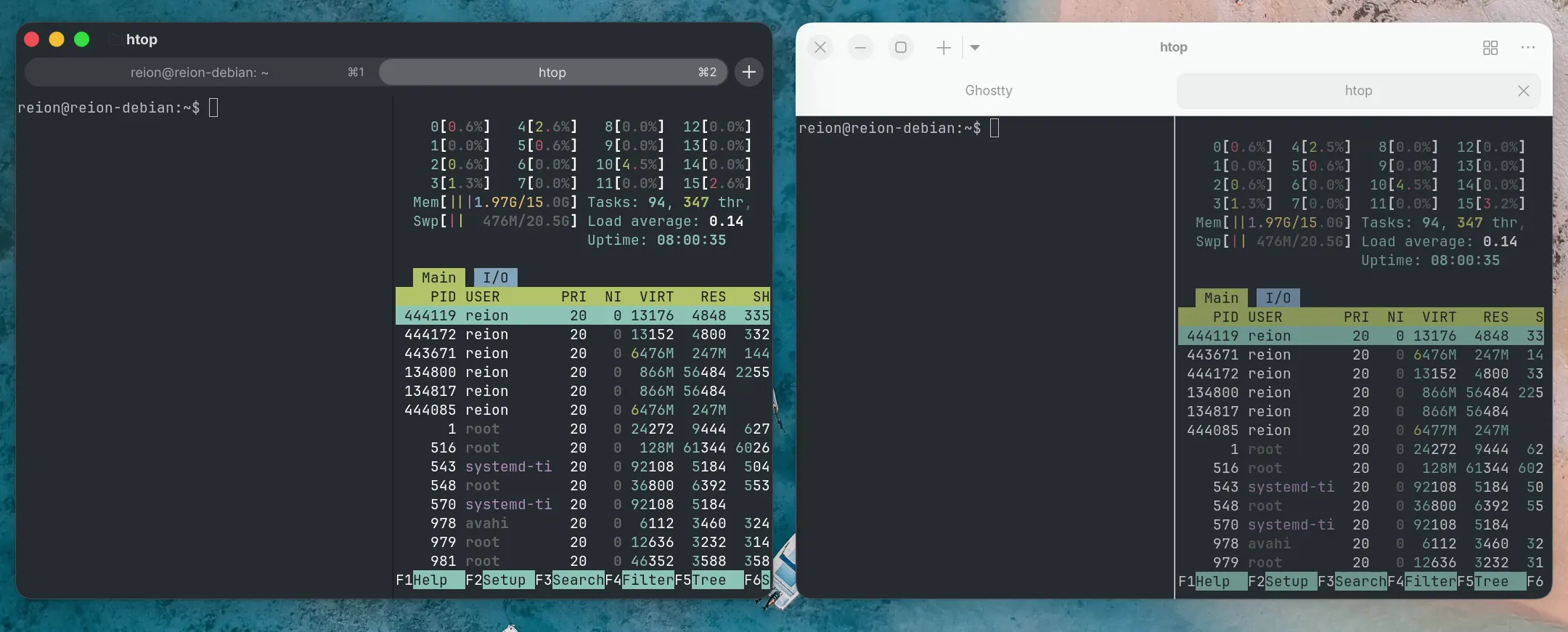
Tabs sit neatly under the title, each with its shortcut, and you can split a window into several terminals.
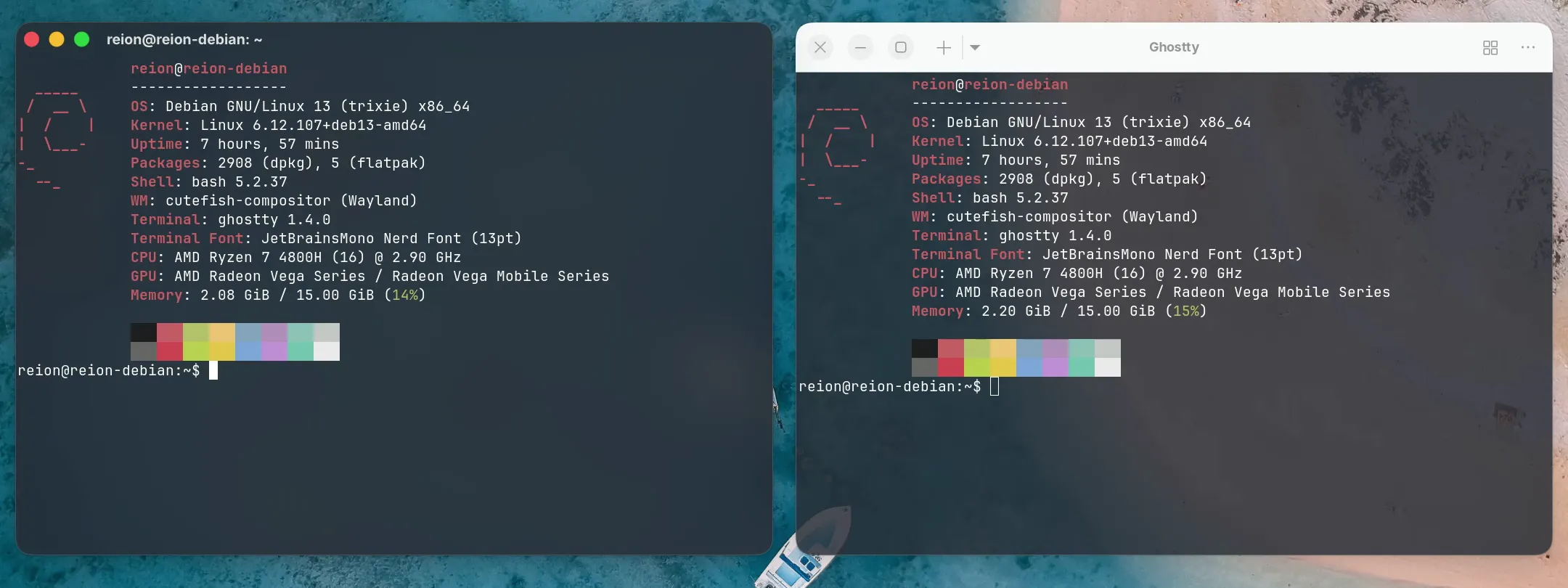
If you like a see-through window, the Mac version softly blurs what’s behind it, title bar included, so the text stays easy to read.
It feels smooth
It opens straight into a terminal. The Mac version’s window shows the terminal from the very first moment it appears, and is ready for typing almost at once.
Scrolling glides. Flick the touchpad and the text keeps gliding and gently slows down, like everywhere else on Cutefish.
It’s the Ghostty Mac users know
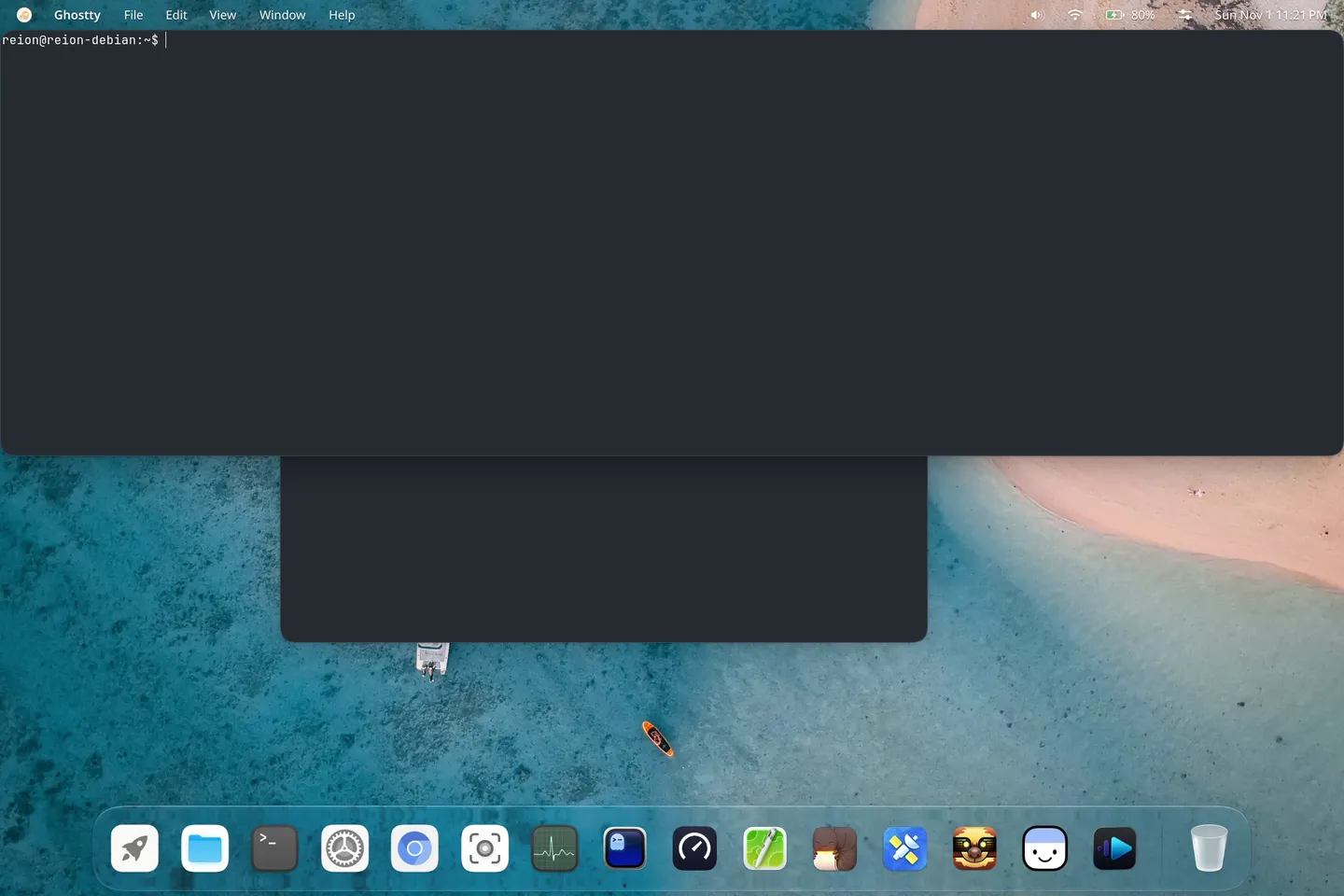
The Mac version uses the same settings file and the same shortcuts as Ghostty on a Mac. If you’ve used it there, you already know it here. Mac extras come along too: the Quick Terminal drops down from the top of the screen whenever you need it, and if you close a tab by mistake, Undo brings it back within a few seconds.
How fast is it?
We timed both versions on the same laptop.
| Mac version | Linux version | |
|---|---|---|
| Time until the window appears | 0.18 s | 0.39 s |
| Time until you can type | 0.21 s | 0.44 s |
| Time from a key press to the letter on screen | 16 ms | 18 ms |
| Time to show a 50 MB file | 2.4 s | 2.5 s |
| Stutters while typing, scrolling and resizing | none | none |
| Memory used | 147 MB | 132 MB |
The Mac version opens in less than half the time. Once it’s open, both are equally quick: letters appear just as fast, long output scrolls by just as fast, and neither stutters.
The trade-offs
The Mac version uses about 15 MB more memory, because it brings along the parts of Cutefish that run Mac apps. It also works the processor harder while you resize the window or scroll, which on a laptop means a little more battery. For everyday typing you won’t feel a difference.
Our recommendation
If you use Ghostty on Cutefish, we recommend the Mac version. It opens faster, fits in with the rest of the desktop, and feels smoother to use.