
Agents like Claude Code and Codex can already read files and run commands. With cutefish-computer-use they can also see the screen, click, type and move windows, so they can work with graphical applications the way you do. It is an MCP server: any agent app that supports MCP can use it.
Control goes through cutefish-compositor itself, not a screen recorder and a fake keyboard. The compositor decides when an agent may act, shows that it is acting, and stops it the moment you want.
What keeps you in charge
- You say yes first. The first time an agent tries to use the desktop, Cutefish asks you. The agent cannot click, type into or fake this dialog. It asks again next time, unless you choose to always allow that app; Settings › Privacy lists those apps and takes them off again.
- You can always see it, and stop it. While an agent is in control, a Stop button sits in the status bar. Locking the screen stops it too.
- Your input wins. Moving the pointer or typing pauses the agent until you are done.
- It cannot answer for you. Permission prompts, password dialogs and the lock screen are off limits to it.
- Only one program is trusted. The compositor offers control only to
/usr/bin/cutefish-computer-use, and the screen can only be read while you have allowed control.
Install
cutefish-computer-use comes with Cutefish Desktop. If your system does not have it yet, install it from the Cutefish repository:
sudo apt install cutefish-computer-useThen log out and back in: the compositor looks for the server when the session starts.
Claude Code, Codex and other command-line agents
Add it as a stdio MCP server. For Claude Code:
claude mcp add cutefish -- /usr/bin/cutefish-computer-useFor Codex, add this to ~/.codex/config.toml:
[mcp_servers.cutefish]
command = "/usr/bin/cutefish-computer-use"
Other agents take the same command in their MCP settings.
Claude Desktop
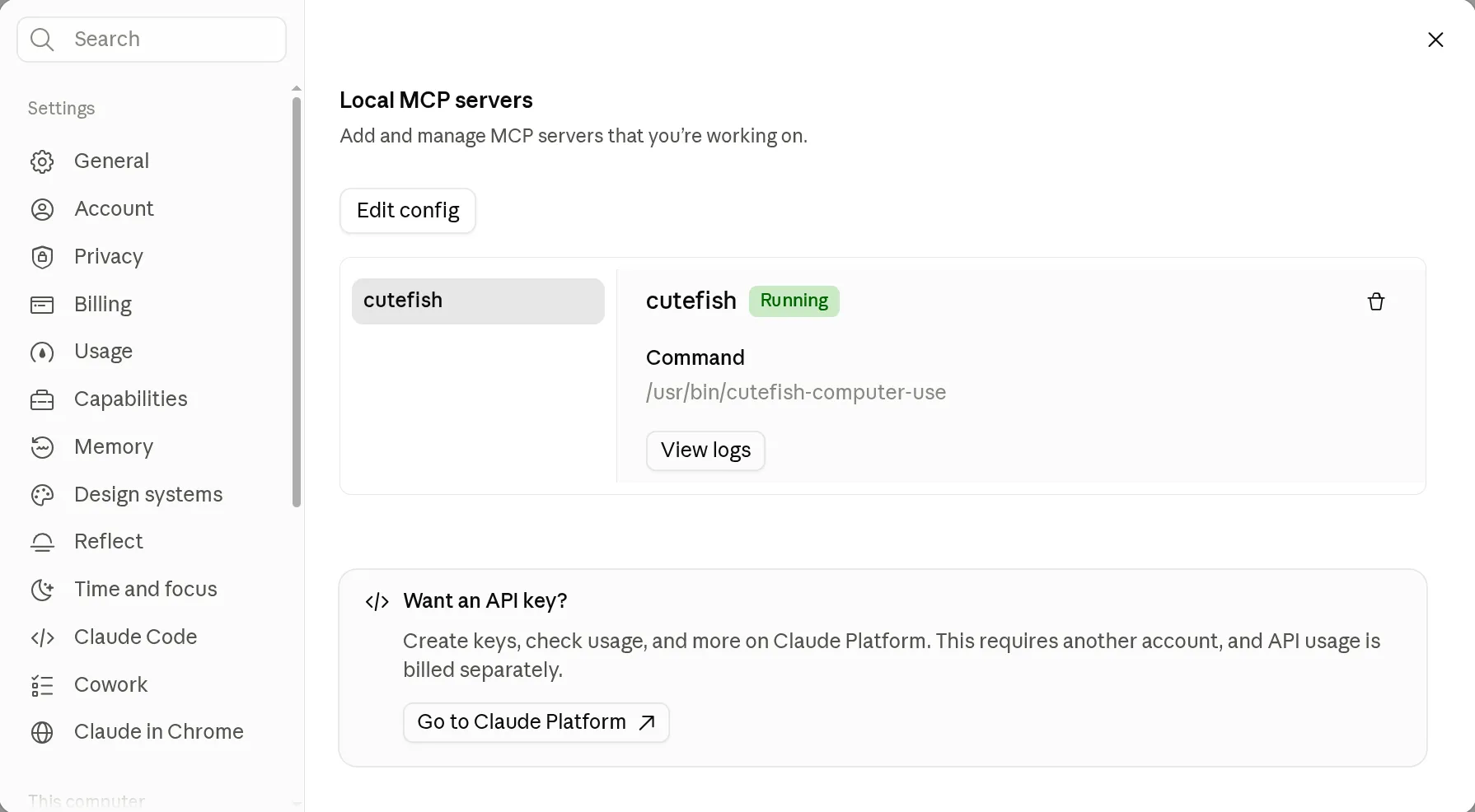
Open Settings, then Developer, and choose Edit config. Add the
server to claude_desktop_config.json:
{
  "mcpServers": {
    "cutefish": {
      "command": "/usr/bin/cutefish-computer-use"
    }
  }
}
Restart Claude Desktop. The Developer page now lists cutefish as running.
Trying it
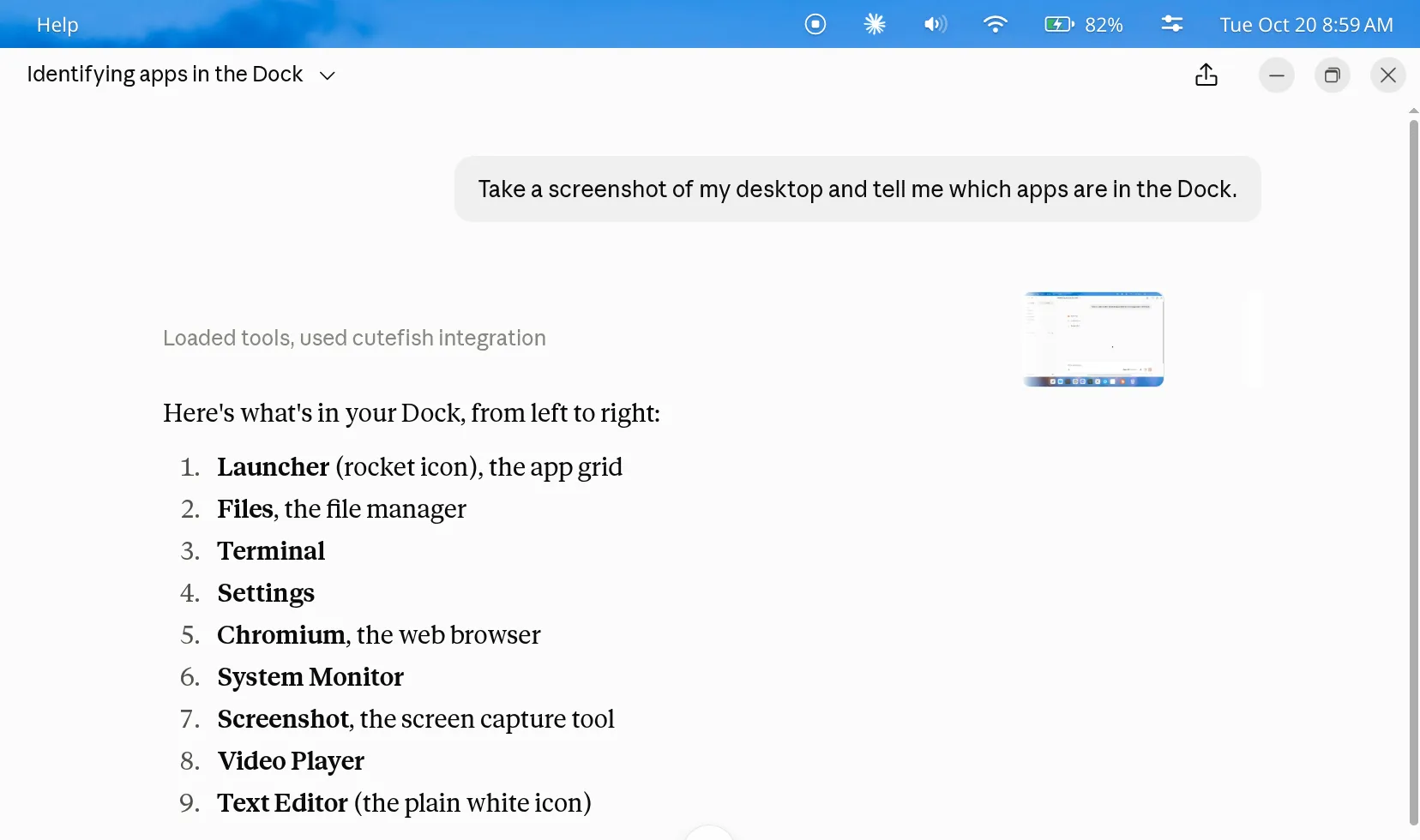
Ask for something that needs the screen, such as “Take a screenshot of my desktop and tell me which apps are in the Dock.” Claude Desktop first asks whether it may use the tool:
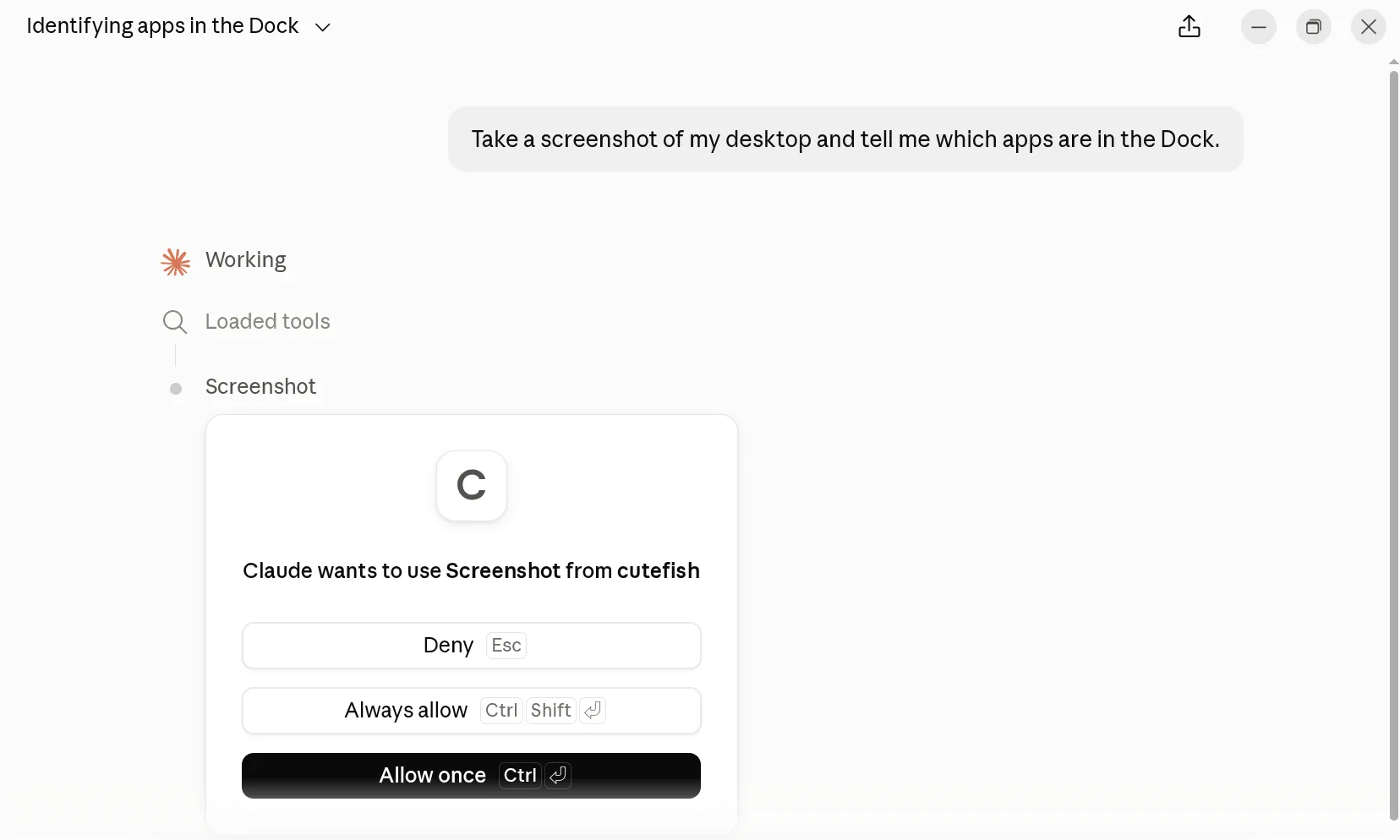
Claude Desktop asks this once for each tool. Choose Always allow so it does
not ask again; the dialog that decides whether an agent may use your desktop
is the next one, and it comes from Cutefish. In Claude Code, allow
mcp__cutefish with /permissions for the same effect.
Cutefish then asks whether the agent may control the computer. This dialog comes from the compositor, not from the agent, and the agent cannot answer it. Tick Always allow this app if you do not want to be asked again:
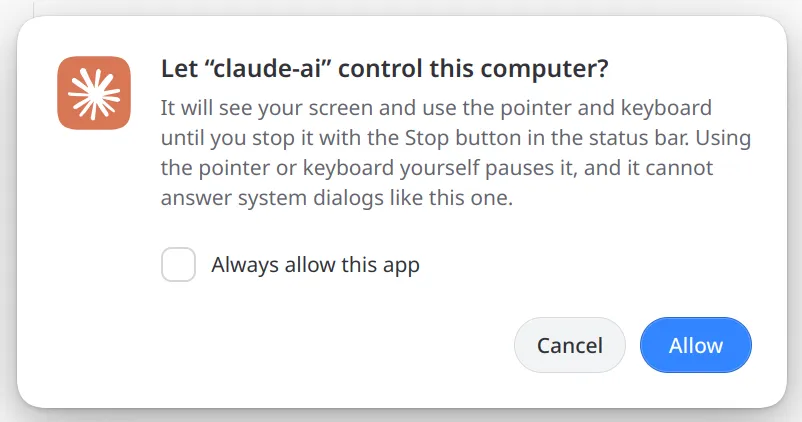
Once you allow it, the agent sees the desktop and gets to work. The Stop button in the status bar shows that it is in control; press it whenever you want it to stop.
What it can do
- See: screenshots of the desktop or of one window, and zoomed views of part of the screen.
- Point: click, double-click, drag, scroll and hold buttons.
- Type: text in any language, key chords and the session’s own shortcuts.
- Windows and apps: list, focus, move, resize and close windows, open applications, files and links, and set the clipboard.
Bug reports and ideas are welcome on GitHub.